


User manual
ShockWatch 2 QR — how it works, step by step
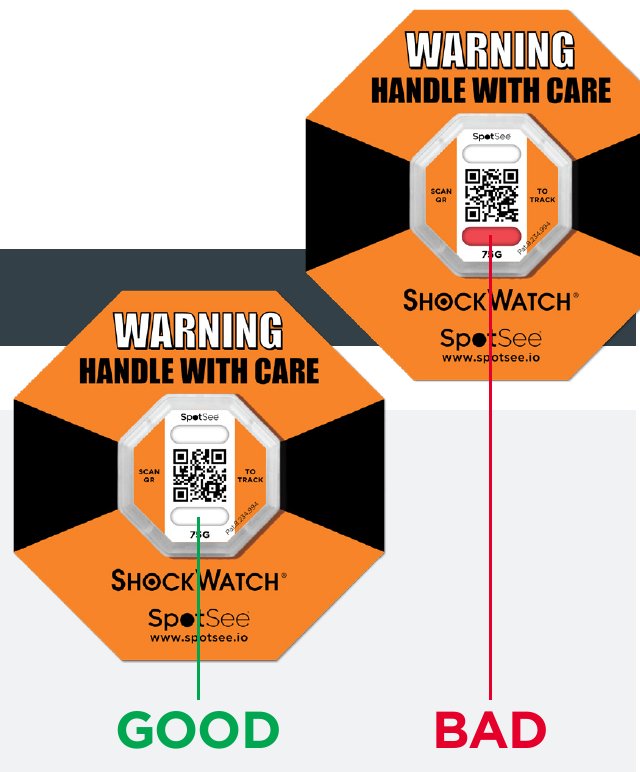
ShockWatch 2 QR is a single-use, battery-free impact indicator with a QR code. After an impact above the selected threshold, the window turns from clear to red. The recipient scans the code with a phone, and the indicator status, together with the date, time, location and serial number, is sent to SpotSee Cloud.
How the system works
- 1. Arm and attach
The indicator is armed before dispatch and attached to the packaging or the product.
- 2. The indicator records
An impact above the threshold permanently turns the window red.
- 3. The recipient scans
An ordinary phone camera, no app — the vision system assesses the status itself.
- 4. The shipper sees the result
Scan data reaches SpotSee Cloud in real time.
 Tap to enlarge
Control of every single parcel
An inexpensive, single-use indicator — no return programme, it can stay on the goods all the way to the end customer.
No more “blind spots”
You know what condition the shipment arrived in, even when nobody from your company is at the delivery point.
Better decisions
The data shows on which routes and with which carriers impacts occur.
ShockWatch 2 in practice — photos and a drop demonstration
Our own photos of a real indicator: from the safety seal, through activation, to triggering after a drop.
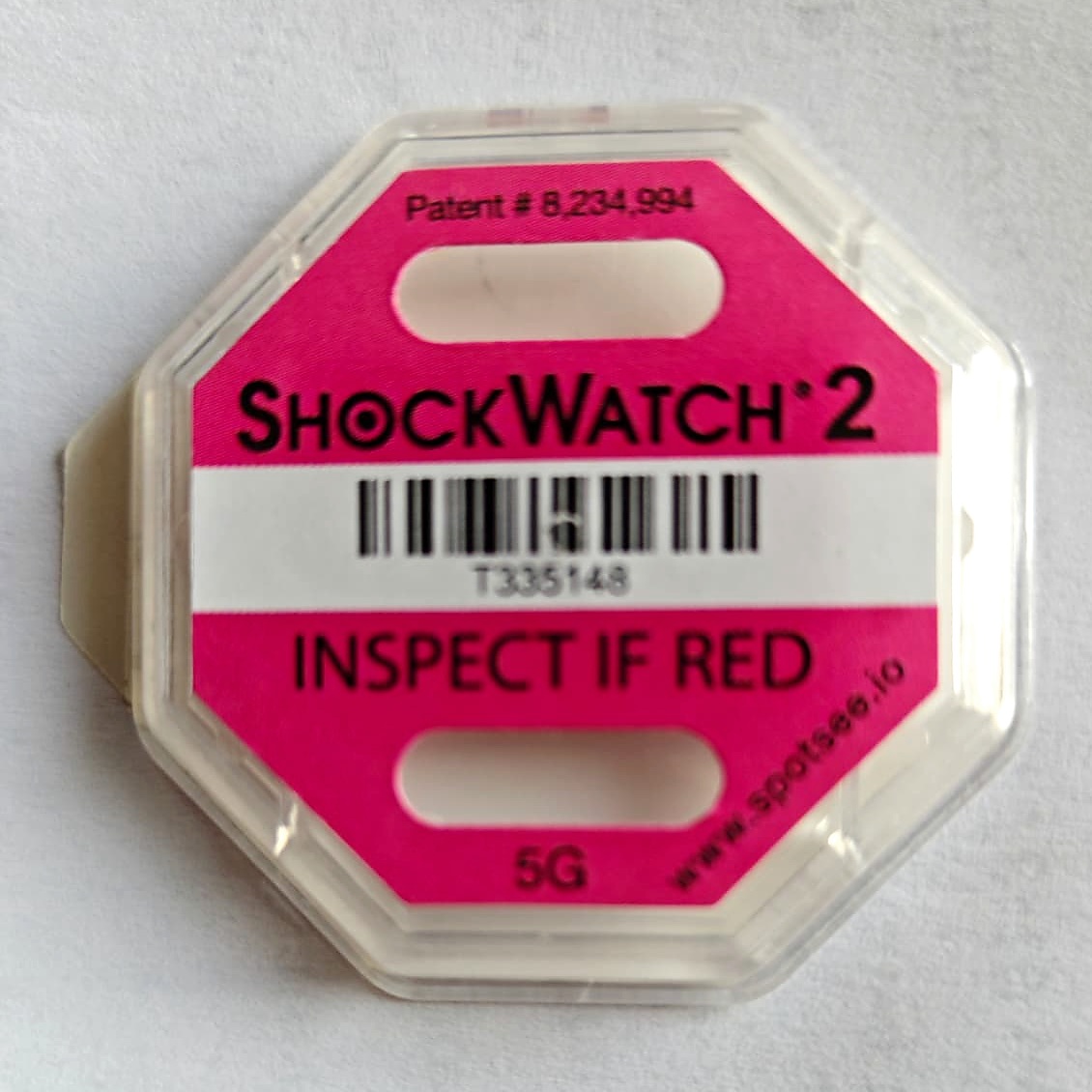
1. Before triggering
The indicator window is white.
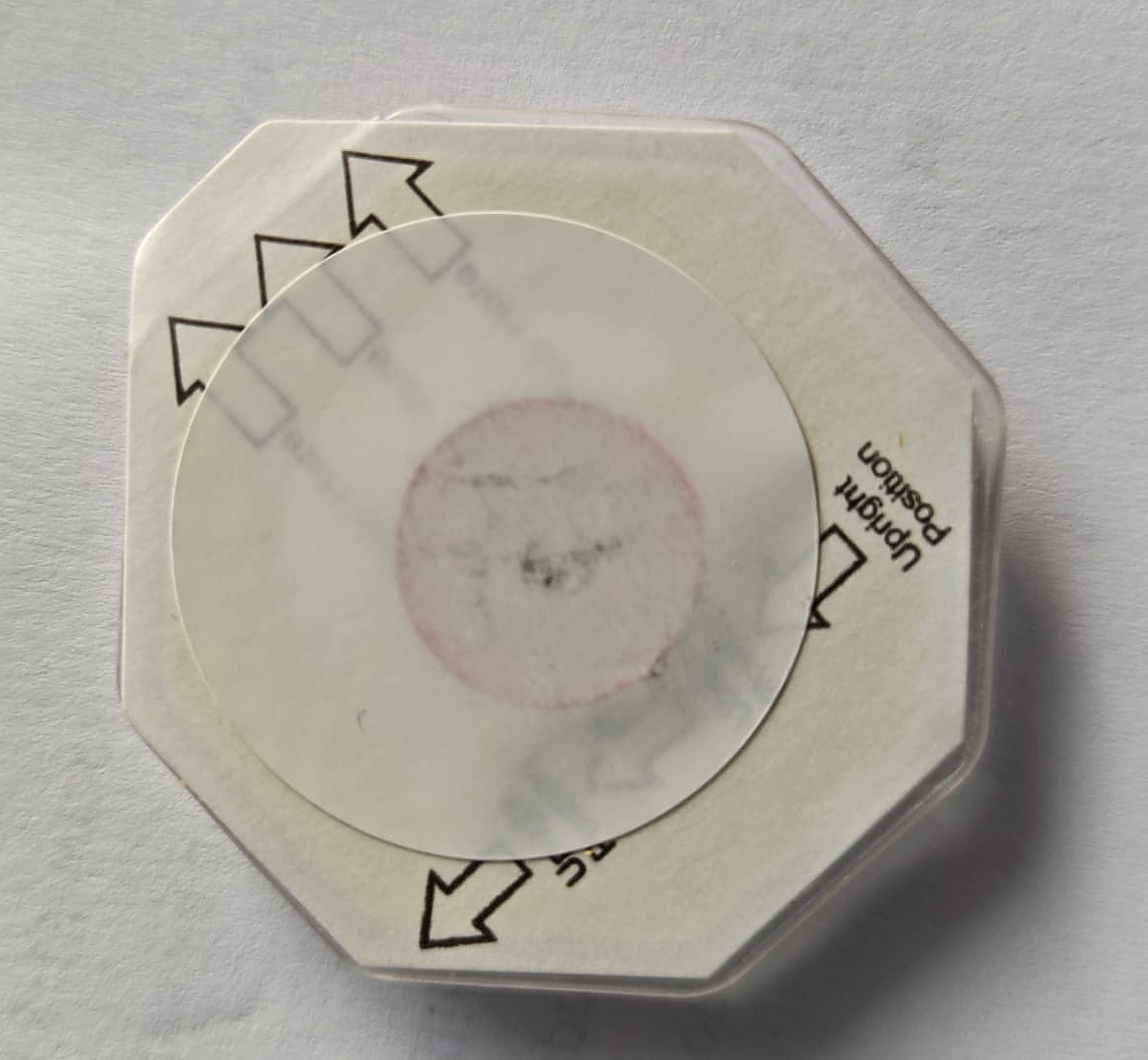
2. Safety seal
The indicator leaves the factory locked by a seal.
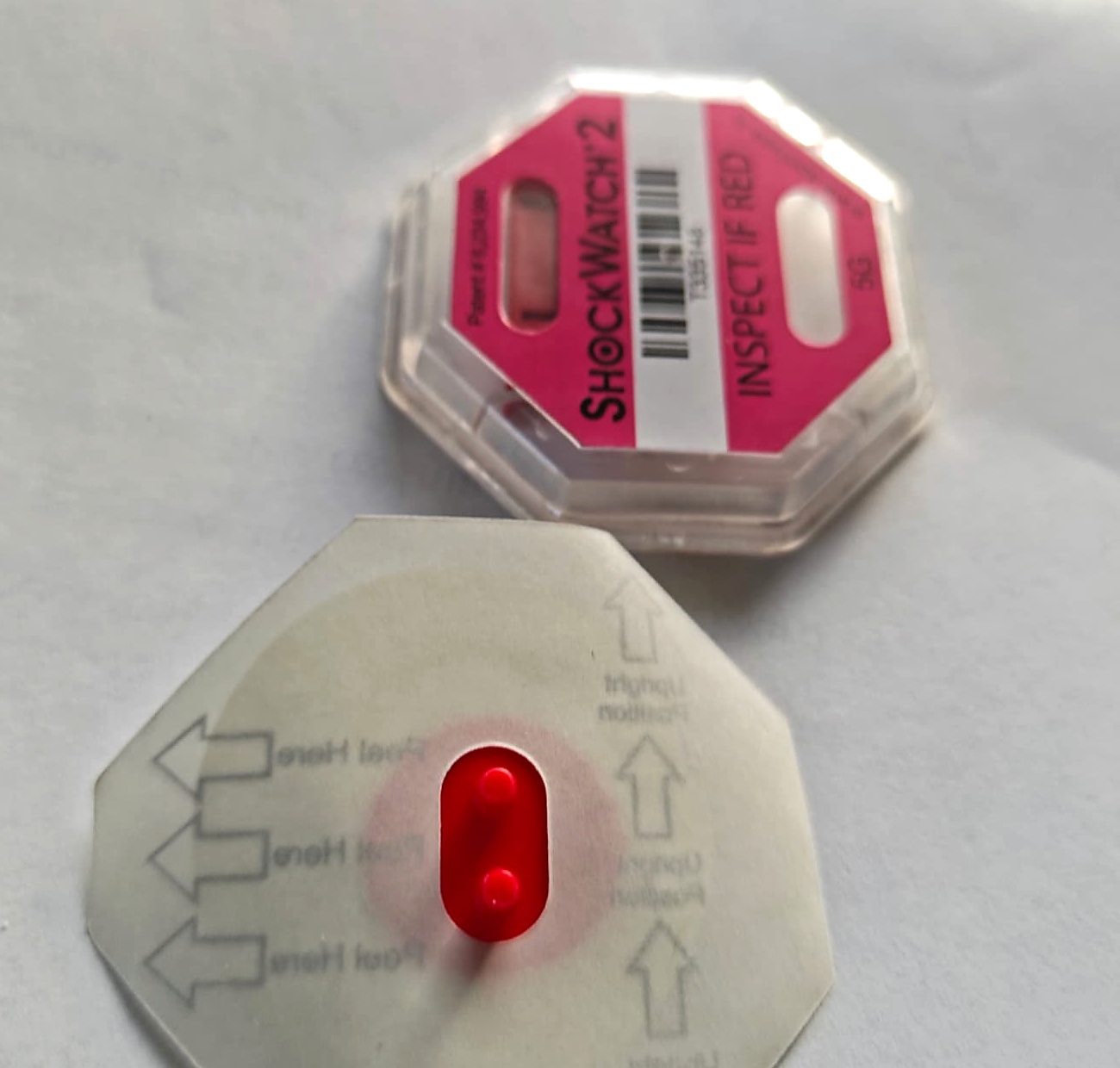
3. Seal removed
Once the seal is removed, the indicator is armed and reacts to impacts.
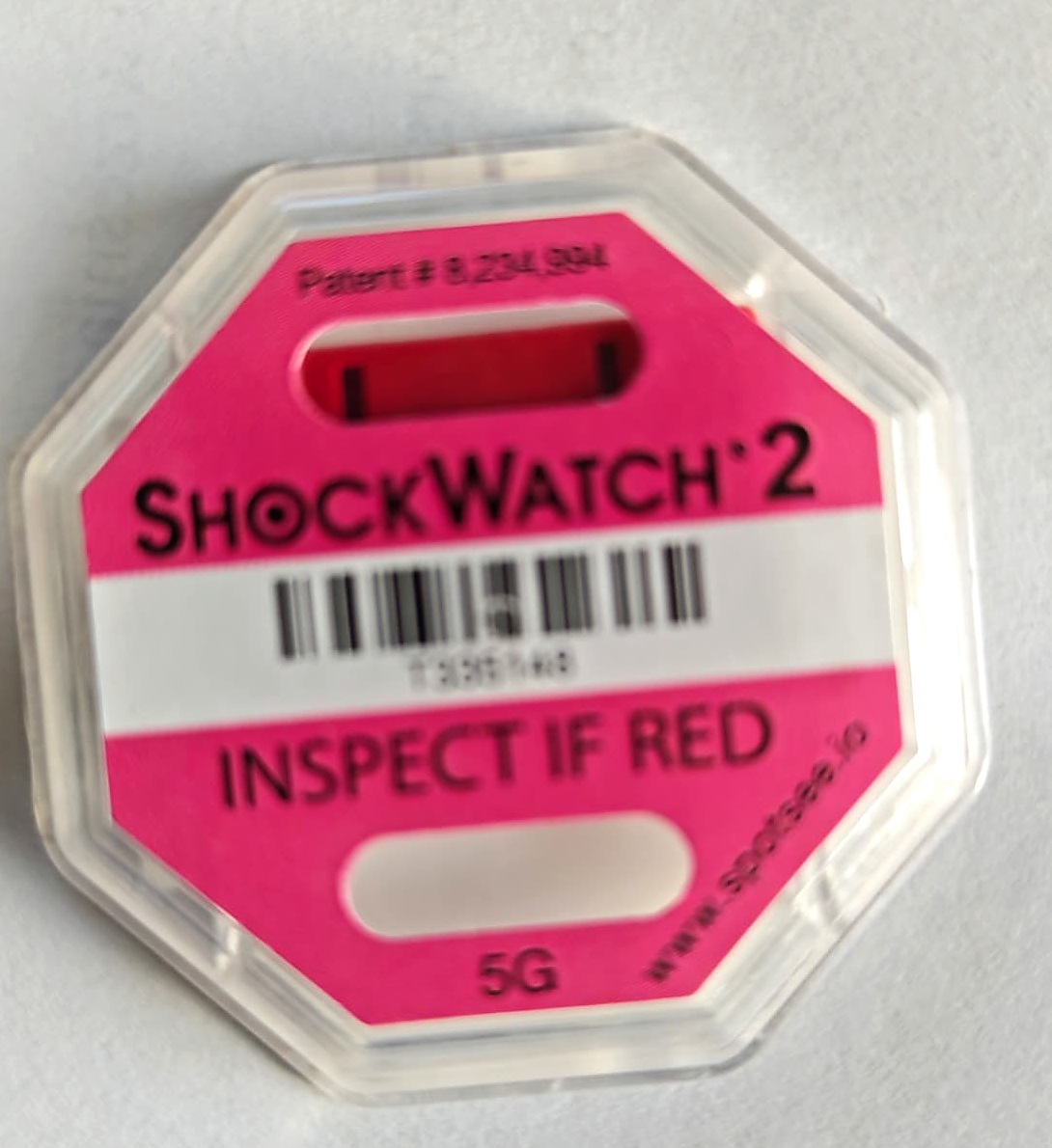
4. After triggering
An impact above the threshold permanently turns the window red.
For the shipper: registration and preparing the shipment
1. Adding indicators to the cloud
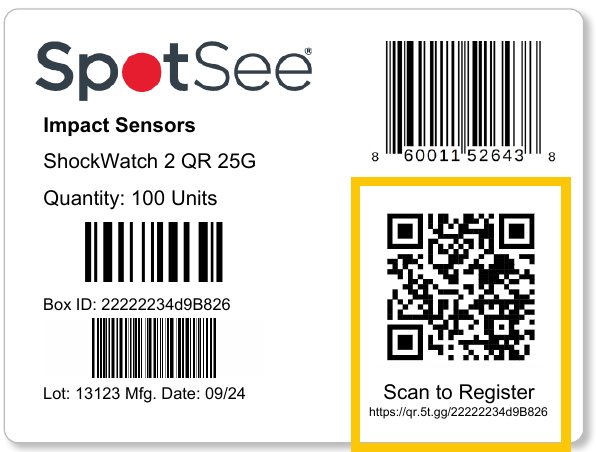
Indicators are packed 100 per box. Each box carries a label with the Box ID, batch number (Lot), production date and a “Scan to Register” QR code.
- New account: scan the QR code on the box (or type its address into a browser) and sign up — the indicators from that box are added automatically.
- Existing account: log in at qr.spotsee.io, open “Impact & Tilt Shipments”, click “Add Sensors” (top right corner) and type or scan the Box ID.
2. One account per company
One person in the company creates the account and then adds further users with the appropriate permissions. Indicators are assigned to a specific cloud, so everyone who needs to see the data must be on the same account.
3. Linking to a shipment (optional)
Every indicator has a unique serial number. Before dispatch you can scan the QR code with a phone or a handheld terminal and copy the number to the invoice, delivery note or shipping system. In the cloud the same number can be described in the Shipment ID field.
 Tap to enlarge
For the recipient: reading on delivery in 6 steps
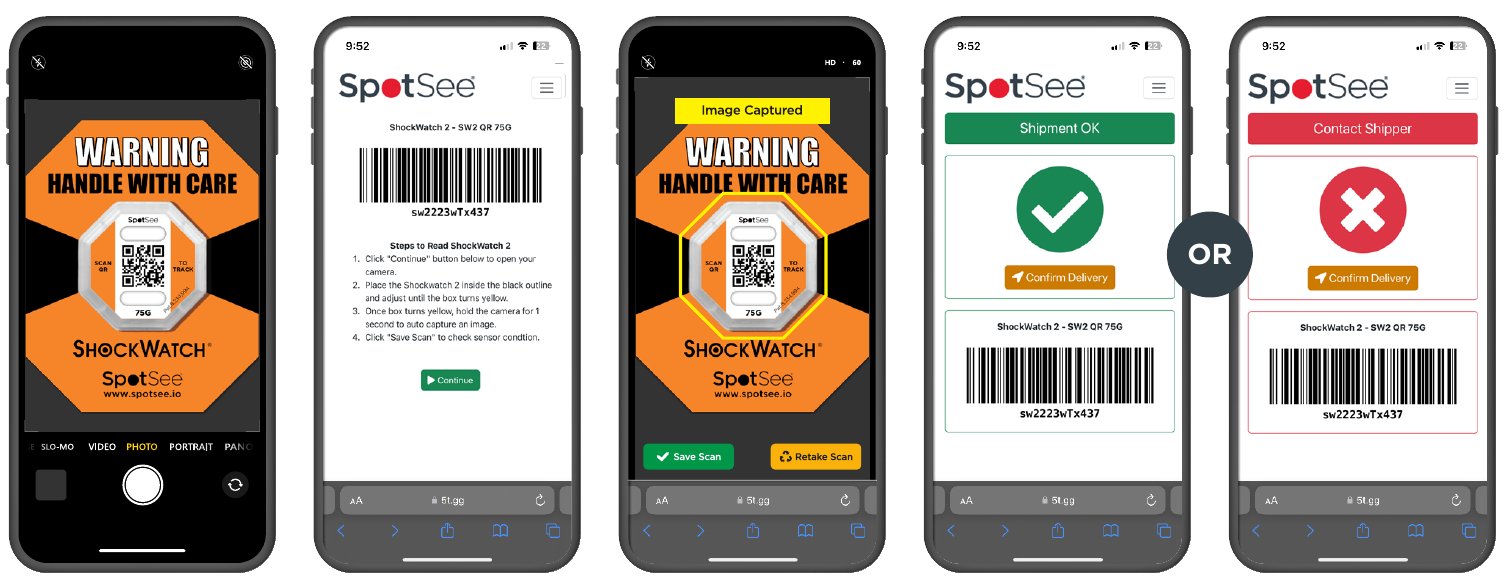
Scan the indicator immediately when you receive the shipment.
- 1Scan the QR code
Point your phone camera at the QR code on the ShockWatch 2 QR indicator. No app needs to be installed.
- 2Tap “Continue”
On the page with the serial number and instructions, press the green button at the bottom of the screen — the camera opens.
- 3Aim at the frame
Place the indicator inside the black frame and adjust the distance until the frame turns yellow.
- 4Hold for 1 second
When the frame is yellow, keep the phone still — the photo is taken automatically (“Image Captured”).
- 5Tap “Save Scan”
Save the scan so the system can check the indicator status. If the photo is blurred, choose “Retake Scan”.
- 6Read the result
Green “Shipment OK” screen — no impact. Red “Contact Shipper” — impact detected: hold the acceptance and contact the shipper.
 Tap to enlarge
Ready-made note for the waybill or invoice
NOTICE: This shipment is protected by a ShockWatch 2 QR impact indicator. On delivery, scan the QR code on the indicator with your phone camera and follow the on-screen instructions. If the red “Contact Shipper” message appears, hold the acceptance, record it in the report with the courier and contact the shipper.
SpotSee Cloud dashboard (qr.spotsee.io)
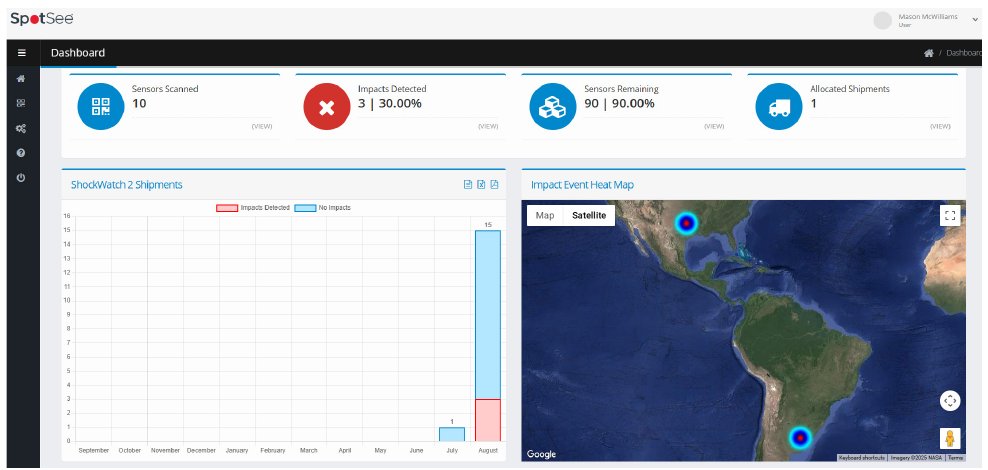
Browser access 24/7. After logging in you see the dashboard: the number of scanned indicators, the number of detected impacts, indicators still in stock, assigned shipments, a map of scan locations and monthly scan statistics.
 Tap to enlarge
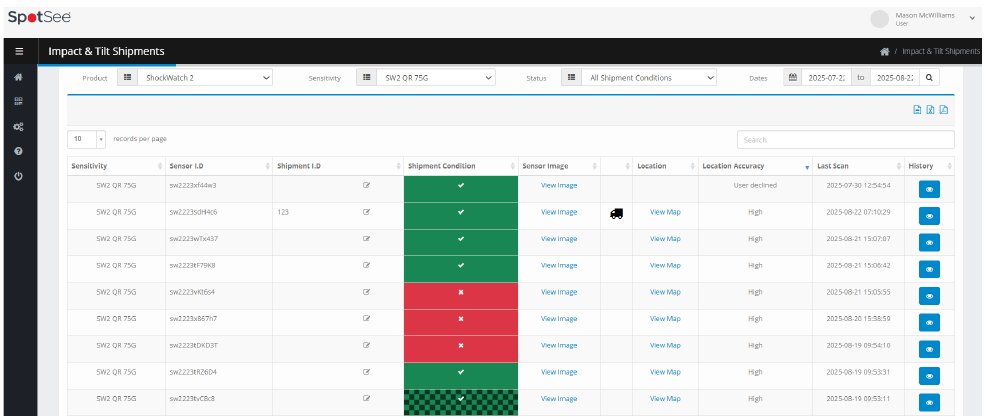 Tap to enlarge
What you see for each indicator
- Sensitivity
- The impact threshold assigned to the indicator, e.g. 25G or 75G.
- Sensor ID
- Unique indicator number — visible after scanning the QR code.
- Shipment ID
- Field completed by the shipper: order, delivery note, waybill number or another identifier.
- Shipment Condition
- Status from the latest scan: not scanned, shipment OK or impact detected.
- Sensor Image
- Photo from the latest scan — exactly what the recipient saw.
- Location
- Place of the latest scan, determined by the phone (map preview).
- Location Accuracy
- Location accuracy: high (<100 m), medium (100–1000 m), low (>1000 m).
- Last Scan / History
- Date and time of the latest scan and the full scan history of the indicator.
Users
The administrator adds people (Admin → Users → +Add User) and assigns their roles.
Audit Log
A log of record creation, deletion and changes in the cloud.
Data export
Export from the dashboard, shipment list, scan history and Audit Log — e.g. for claims.
Want to introduce ShockWatch 2 QR?
We will help you choose the sensitivity for your shipments and prepare a quotation.
See also
ShockWatch →
Single-use impact indicator for packaging
TiltWatch →
Indicator for tilt angle and complete overturning
ShockWatch — shock indicators for shipments →
Learn how ShockWatch shock indicators work, select the G threshold for your cargo weight, where to apply them and what to do if they are red on delivery.
TiltWatch — Cargo Tilt Indicators →
Learn how the TiltWatch cargo tilt indicator works, which model to choose, how to apply it and what a red indication means after upright transport.
ShockWatch calculator →
Select the ShockWatch 2 and 2 QR shock indicator sensitivity (5G–75G) for your shipment's weight and dimensions using the manufacturer's chart.
ShockWatch + TiltWatch in transport →
How to protect machines and control cabinets with both indicators.