


Manual · TiltWatch XTR QR (24101-Q)
TiltWatch XTR QR — scanning and SpotSee cloud manual
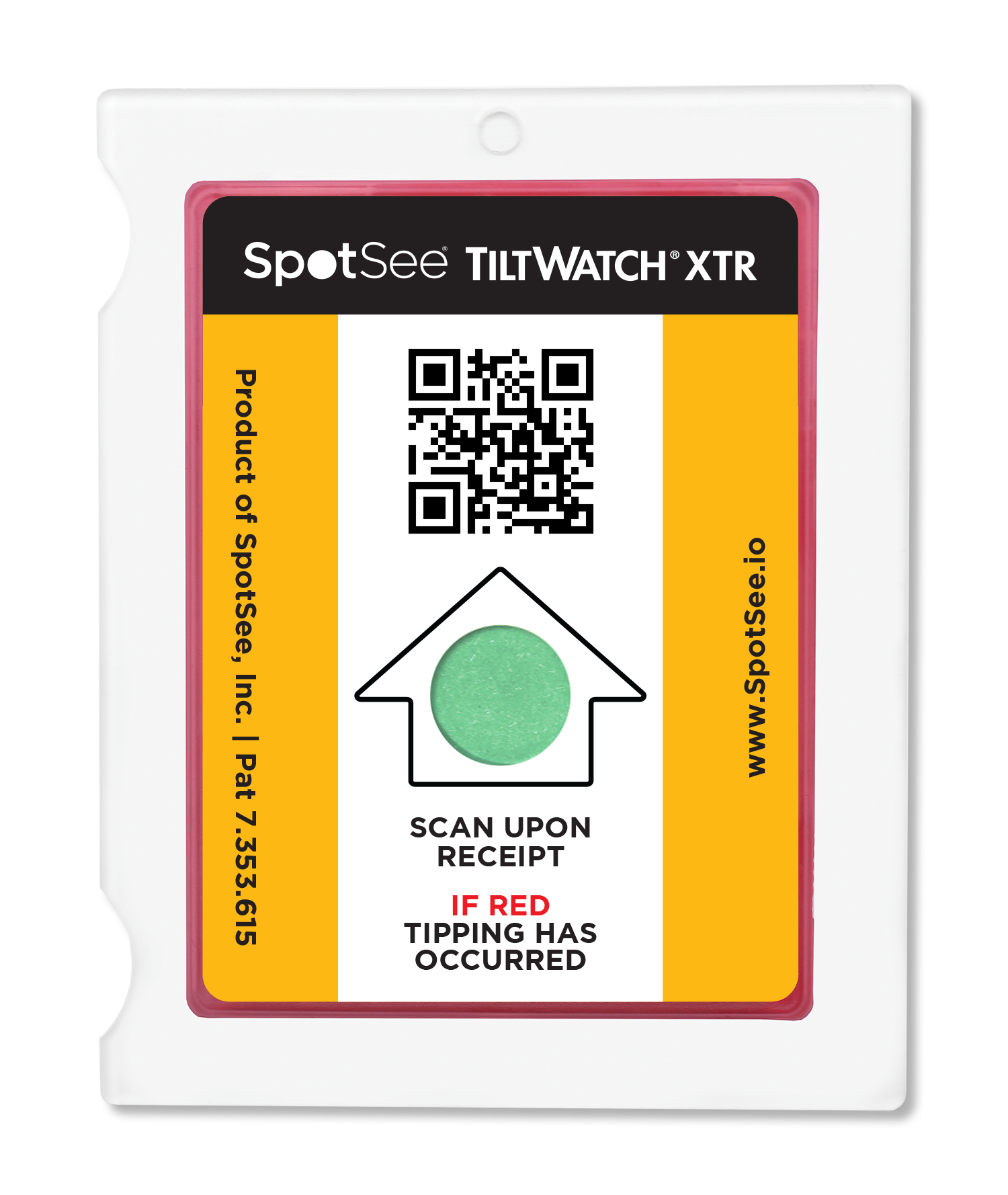
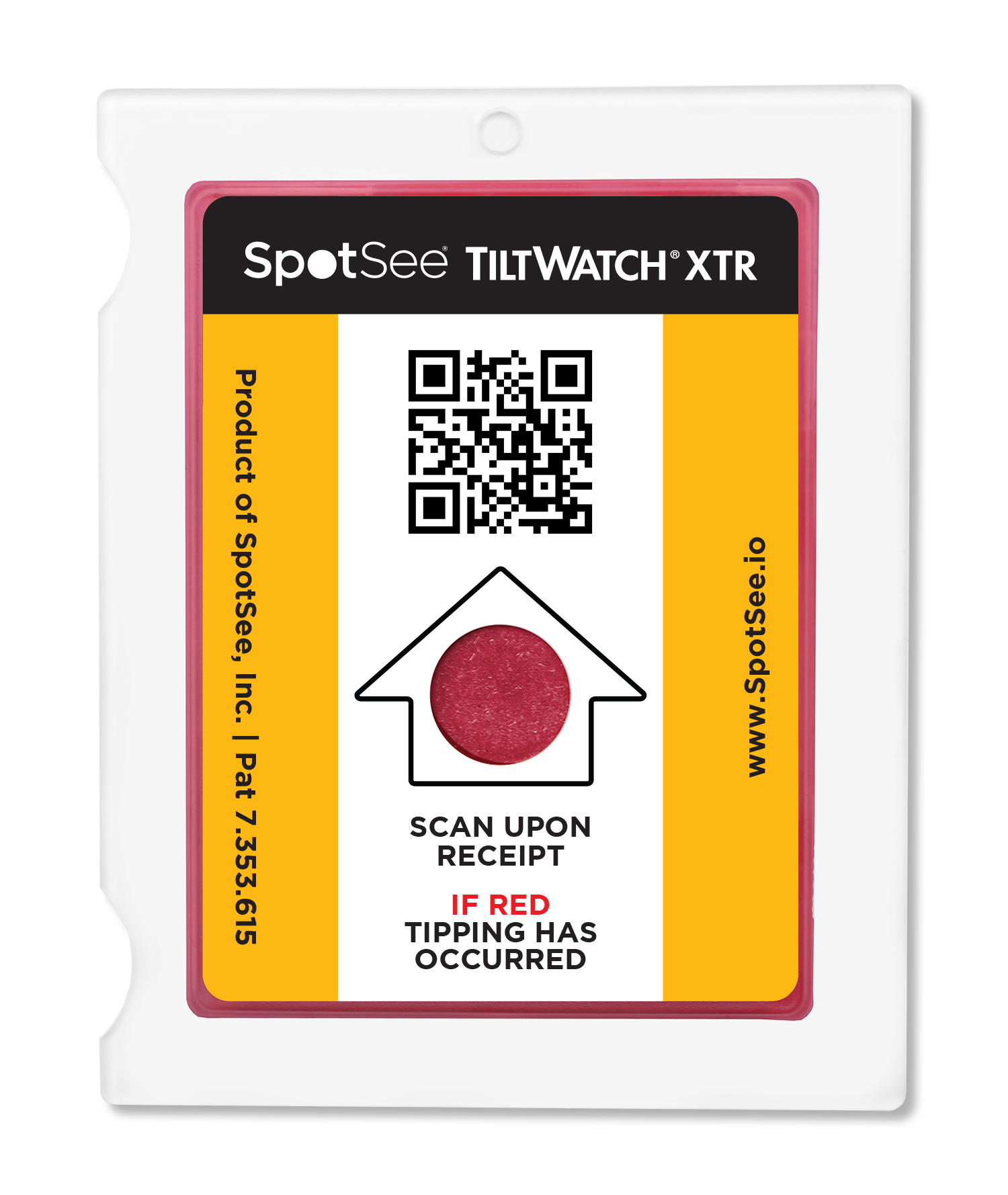
TiltWatch XTR QR is a single-use, battery-free tilt indicator with a unique QR code. When a shipment tilts past 80°, the window turns from green to red. A phone scan records this condition together with time, location and serial number in the SpotSee cloud.
How TiltWatch XTR QR works
It is the proven TiltWatch XTR mechanism with digital reading added. The QR code acts as a unique, globally scannable serial number — any smartphone and any browser can read it.
- Activation threshold: tilt above 80°, permanent and irreversible indication.
- Normal swaying and vibration in transport do not trigger it.
- After a scan the cloud stores: indicator condition, date and time, location and serial number.
- No battery, no app and no extra hardware.
Receiver: check the shipment in 5 steps
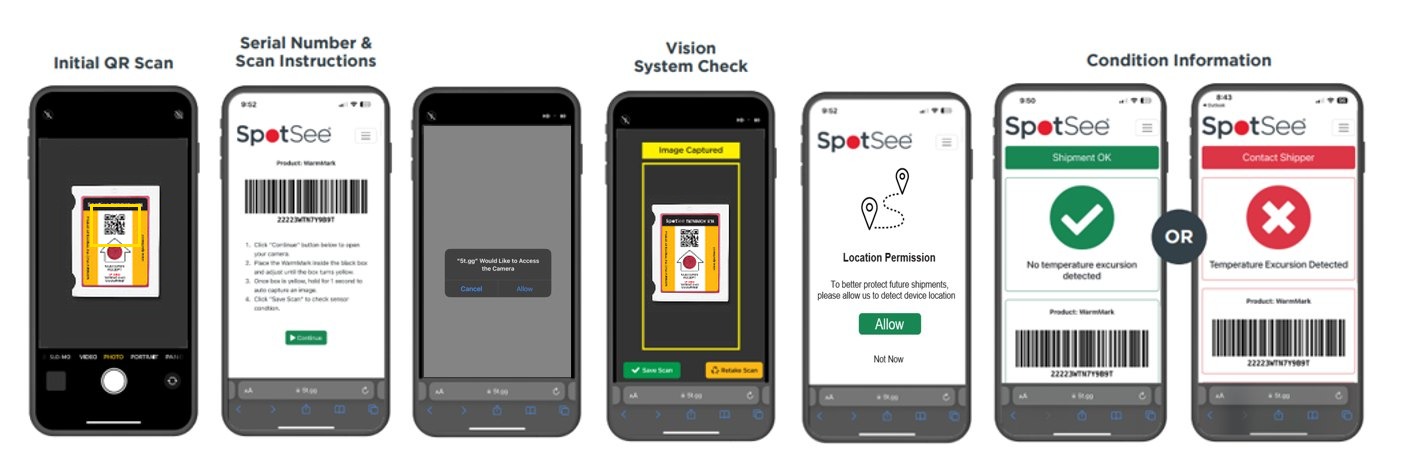
Scan the indicator immediately on receipt, while the driver is still there.
- 1Scan the QR code
Use the regular phone camera and open the link from the code on the indicator.
- 2Tap “Continue”
The button at the bottom of the screen opens the camera in the browser.
- 3Fit the indicator in the frame
Place TiltWatch XTR QR inside the black outline until the frame turns yellow.
- 4Hold for 1 second
Once the frame is yellow, the image is captured automatically.
- 5Check the result
Tap “Save Scan”. The screen shows the condition: green mark — OK, red — tilt detected.
 Tap to enlarge
Vision system — what the messages mean
The phone does more than read the code. The system analyses the pixels in the indicator window and decides whether red has appeared.
- Auto capture
- Happens by itself when distance, focus and lighting are adequate.
- Low light
- The image may be saved marked “low light” — repeat the scan in a brighter place.
- Glare
- Too much glare prevents a confident reading — change the phone angle and rescan.
- Change lighting
- Appears when confidence is low, mainly on low-end Android phones — rescan.
- Event detected
- Red in the window is recognised and recorded as a tilt event.
- Flashlight
- In difficult lighting, switch on the phone flashlight to help detection.
SpotSee cloud (qr.spotsee.io) — account and adding sensors
Each indicator has a unique serial number and must be allocated to your company account for its scans to be visible. The portal is available 24/7 in a browser.
Account registration
Scan the QR code on the box label or open the address printed on it. A temporary password arrives by e-mail; sign in at qr.spotsee.io and finish the setup. Best practice: one account per organisation with users on different permissions.
Adding sensors (Box ID)
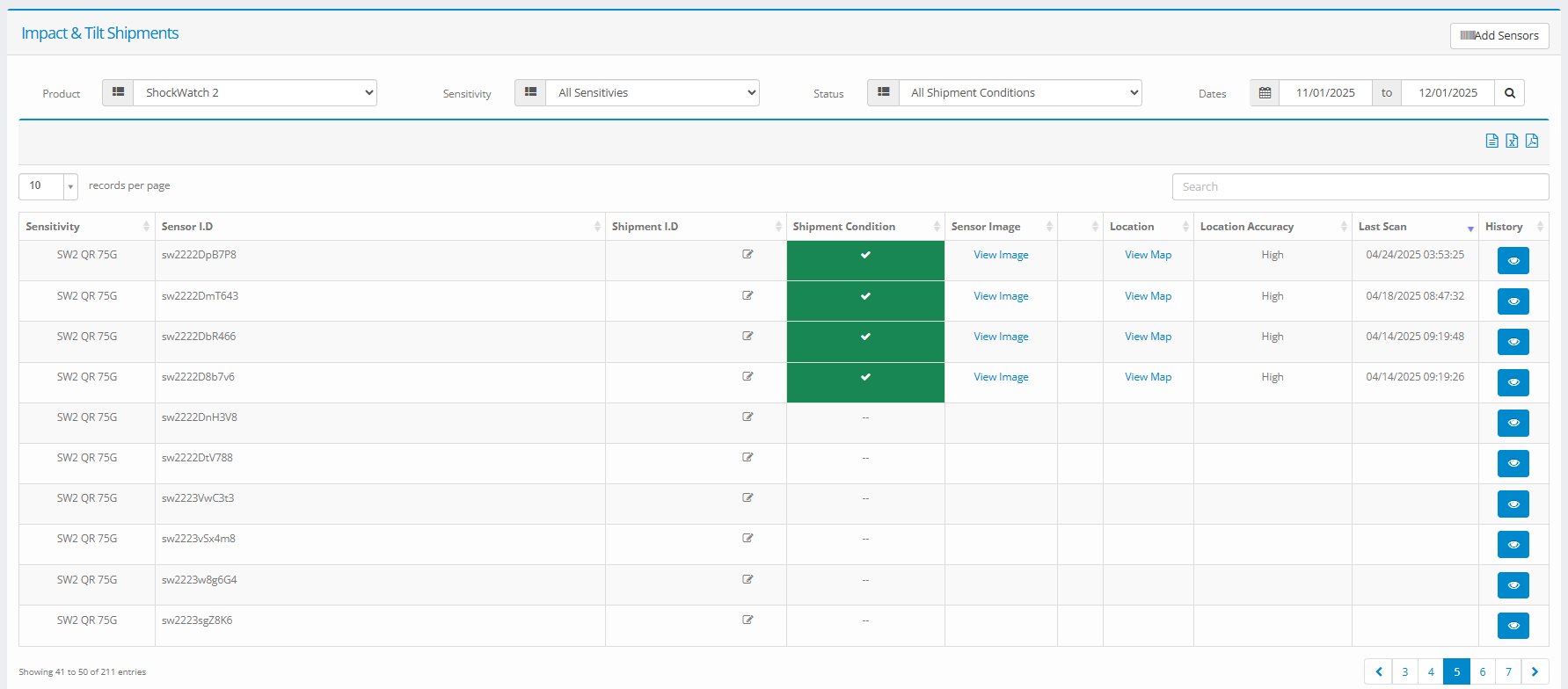
Add a whole batch with one scan of the box label or by typing the Box ID in the portal (“Add Sensors”). Sensors are visible immediately. High-volume users can enable automatic adding.
Scan history and map
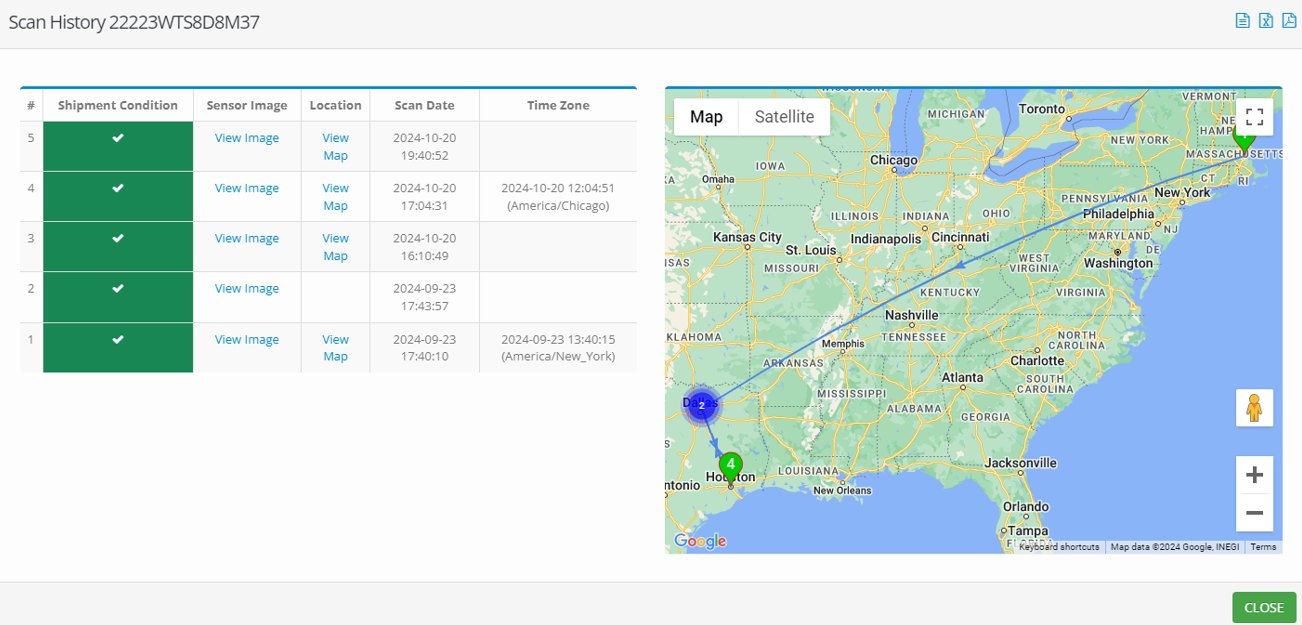
For every indicator the portal lists scans with time, location and a window photo, plus the route on a map.
Carrier confirmation
Optional feature in admin settings: the carrier scans the indicator at delivery and confirms the shipment arrived in good condition.
Where TiltWatch XTR QR works best
Ship-to-home (appliances, TVs)
Proof of condition at delivery cuts returns and unfounded claims, and data shows which carrier causes damage.
Data centres, automotive, machinery
Loads that must stay upright, with a digital condition record at every checkpoint — even after breaking bulk.
Supply chain analysis
The scan map reveals problem lanes and locations. SpotSee monitoring programmes typically reduce damage by 40–60%.
Want to deploy TiltWatch XTR QR?
We will help you match indicators to your load and set up the SpotSee cloud account.
See also
ShockWatch →
Single-use impact indicator for packaging
TiltWatch →
Indicator for tilt angle and complete overturning
ShockWatch — shock indicators for shipments →
Learn how ShockWatch shock indicators work, select the G threshold for your cargo weight, where to apply them and what to do if they are red on delivery.
TiltWatch — Cargo Tilt Indicators →
Learn how the TiltWatch cargo tilt indicator works, which model to choose, how to apply it and what a red indication means after upright transport.
ShockWatch calculator →
Select the ShockWatch 2 and 2 QR shock indicator sensitivity (5G–75G) for your shipment's weight and dimensions using the manufacturer's chart.
ShockWatch + TiltWatch in transport →
How to protect machines and control cabinets with both indicators.